

AI Procurement Automation with Copilot Studio: Transform Vendor Quote Analysis in 2025
Complete Tutorial on Building Intelligent Agents for Automated Vendor Management and Purchase Order Processing

Building a Procurement Agent with Copilot Studio to Streamline Vendor Analysis
Copilot Studio is one among the AI Agent builders in the market. The best part about Copilot Studio is that it lives inside the Microsoft ecosystem. If your business is already using Microsoft, then you can build a lot of AI Agents for your business using Copilot Studio.
We all know how much time businesses take to analyze different vendors to make a purchase order. If it is a big business, obviously the business would receive a lot of vendors and their quotations.
So I built an AI Agent that automatically extracts the vendors' quotations and adds them to the Dataverse database, which is then used by the agent as an assistant to help make informed decisions.
In this post, I want to discuss the AI Agent that I built in Copilot Studio. It is called the Procurement Agent.
Note: I have added a short demo showing you the Agent in action at the end.
The Architecture: A Two-Part Solution
I have used Copilot Studio as the main agent and also Flows to do the automatic upload of Vendor Quotes. The Procurement Agent has two main parts working together:
Automated Quote Processing with Flows: This automatically processes when a vendor email is received, extracts the quotation data, and saves it to a central database.
An Intelligent Assistant in Copilot Studio: This is the conversational agent that uses the collected data to help users compare vendors and make decisions.
Below are the exact steps I have used.
First Action: Automating Quote Extraction with Flows
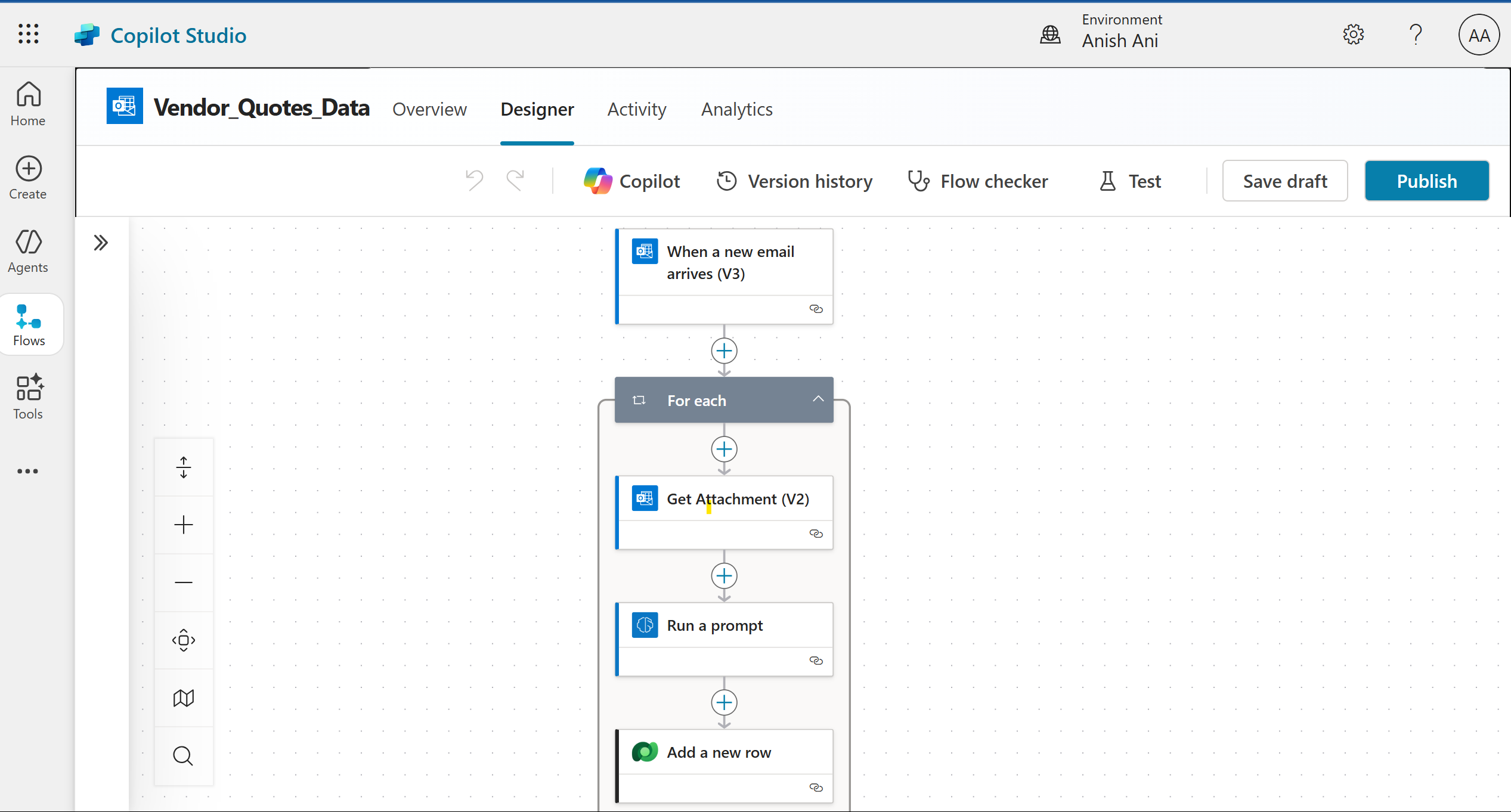
Flows is a feature inside Copilot Studio which is similar to Power Automate but has more agentic and AI capabilities in it. Whenever a vendor sends you an email with the quotation, the Flow automation starts.
Here is the step-by-step process I have used:
Email is Received: You can set up the "To" address to receive the email for your shared inbox so that in the email trigger filter you can use it.
Get Attachment: We use this step to get the attachment from the email as the email will contain the attachment of the quotes.
AI Step: This is the step where we extract the quotation from the attachment. You can use the default GPT-4o model or you can use any model from your Azure AI Foundry. In Azure AI Foundry you can deploy any model you want and use it right inside Copilot Studio. In my example I have used the default model but based on your accuracy you can change the model.
Add New Row (Dataverse): We use this step to add the extracted quotation into the Dataverse table.
The above steps have been built using FLOW.
Second Action: Building our Assistant in Copilot Studio
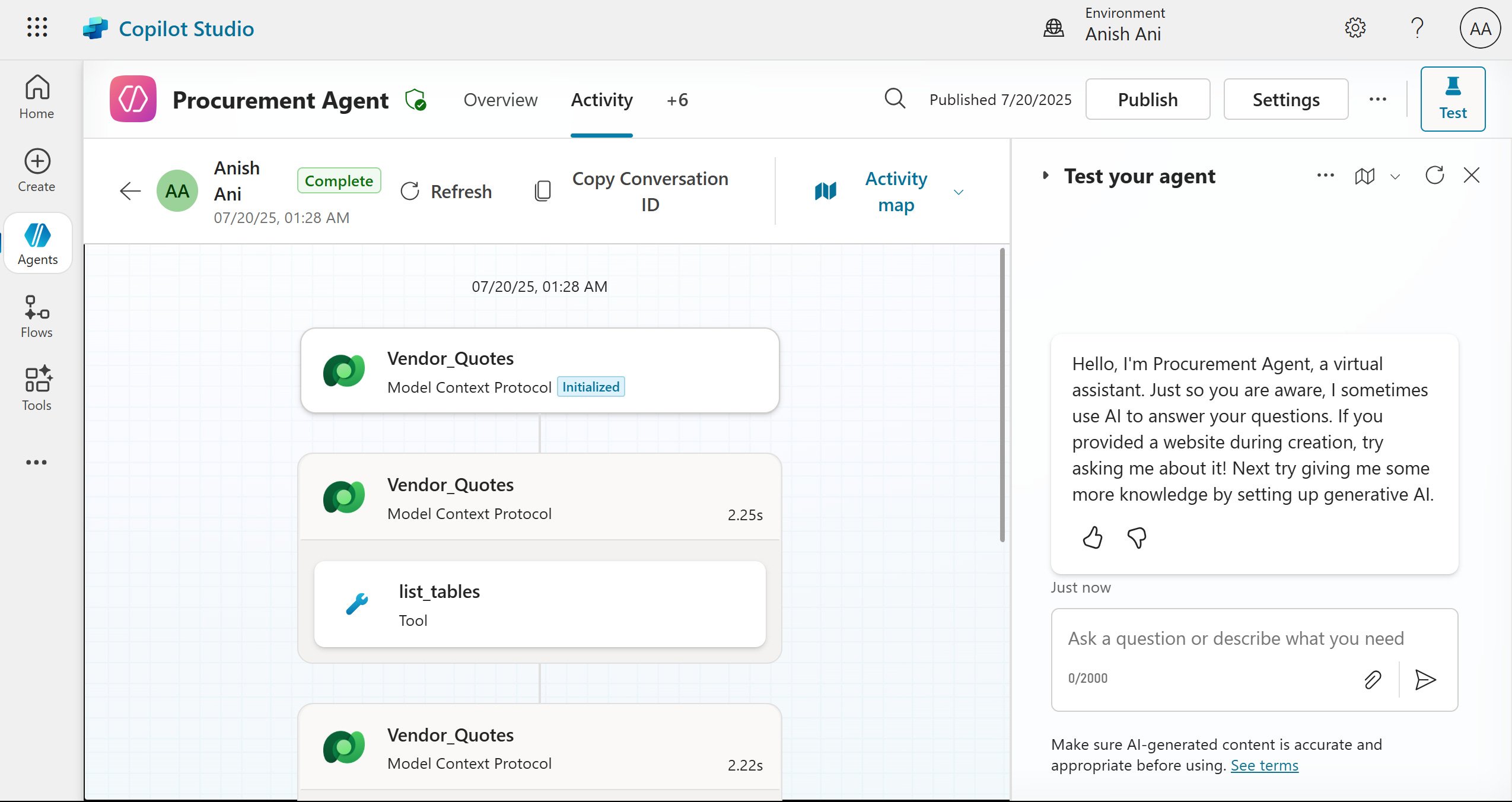
The structure of Copilot Studio Agent is the following:
Overview
Knowledge Base
Tools
Agents
Actions
Topics
Channels
Overview: This is where you define the Name and the Instructions for your agent. This has to be precise and the tool names have to be precise as well so that the agent will exactly know how to use the defined tool.
Here is the instruction for my Agent:
Core Objective: Your primary role is to act as a procurement assistant. You will help users compare vendor quotes to find the best option based on their needs.
Available Tools:
Vendor_Quotes: Use this tool to proactively search for and retrieve information about different vendors and their pricing.
Vendor_Quote_Extractor: Use this tool only when a user uploads a document. It will extract information like vendor name, pricing, and line items directly from the uploaded file.
Standard User Interaction Flow:
Assist with Vendor Comparison (Default Task):
When a user asks for information about vendors or wants to compare quotes, your default action is to use the Vendor_Quote_Extractor.
Proactively ask the user clarifying questions to understand their priorities (e.g., "Are you looking for the lowest price, fastest delivery, or best warranty?").
Use the information gathered from the quotes tool to present a clear comparison of vendors. Help the user understand the differences and guide them toward the best choice for their specific needs.
Handle Uploaded Quotes (Occasional Task):
If a user uploads a document (like a PDF or image of a quote), you must recognize that a file has been provided.
In this specific case, use the Vendor_Quote_Extractor tool to analyze the document.
Extract the relevant details from the quote (vendor name, total price, item descriptions, etc.) and present this information clearly to the user. You can then use this extracted data to answer their questions or compare it to other vendors found using the quotes tool.
Knowledge: This is where you can add the knowledge base required for your agent. You do not have to worry about vectorization as it is done by default for accuracy. However in our agent I have not used any Knowledge base.
Tools: This is where you can add tools for your agent to take any action. There are already many Microsoft related tools built in. The best part is that they support MCP as tools. Also they have Dataverse MCP built in. I have used Dataverse MCP for my agent where our vendor quotations are saved. This Dataverse MCP can read and edit updates of all your tables.
Agents: This is where you can assign other agents like a multi agent system. You can build the agents in the Copilot Studio and assign it to the main agent. Again in my agent I have not assigned any agents as this is not a multi agent system.
Topics: This is where you setup structured conversations based on the use case. So you can assign multiple topics to your agent. As I have not assigned any Topic to our agent I will share the details of topics in my future posts.
Channels: Channels option is the way you can deploy your agent. You can deploy to Microsoft Teams, Microsoft 365 Chat and other platforms. I have deployed my agent to Microsoft Teams and Microsoft 365 Chat.
When it comes to my agent, I have just given the agent instruction to answer my questions using Microsoft Dataverse MCP as a tool.
There is one thing to note in Copilot Studio. You will have option to use the Topics for conversation or the generally available chat option. When you deploy to the
particular channel you will see default interface to communicate with your agent which could either be from the Topics or the generally available chat option. The agent will decide based on the given instruction and trigger the actions accordingly.
Quick Demo:
Amazing features which I love about Copilot Studio
There are few amazing features which I love about Copilot Studio:
You can enable web search if needed
You can do one click deployment which lives right inside your Microsoft environment and assign it to your employees
You can setup Copilot Control System for security
You can add Flows as a Tool or it can be deterministic workflows like Power Automate
Conclusion
Now the agent I have built is like an assistance for giving me right information. However you can extend the capability by setting up other tools like sending Email or updating Vendor table or anything.